

Everyone starts the same way: you click the star, Chrome saves the link under “Other bookmarks”, and you move on. Three years later, you end up with seven hundred entries, folders named “Misc”, “Misc 2” and “To sort”, and the habit of retyping the address into Google rather than searching your own bookmarks. The problem isn't the number of links: it's the lack of a rule.
This article offers a complete method to regain control: clean out what you have, build a tree that lasts, adopt a naming convention, then set up a five-minute-a-month maintenance routine. The method works on Chrome as well as Firefox — both browsers share the same folder logic.
Why your bookmarks become unusable
A bookmark serves two very different purposes, and that's where the confusion comes from. It can be a shortcut — a site you open every day and want to reach in one click. Or an archive — an article, a piece of documentation, a resource you want to be able to find one day, without knowing when.
These two uses call for opposite treatment. A shortcut must be permanently visible and number in the dozens, not the hundreds. An archive must be filed and searchable, but has no reason to clutter your field of vision. By mixing the two in the same tree, you get a list where the essential drowns in the incidental.
The second cause is filing at the moment of saving. When you add a bookmark, you're busy doing something else: you click the star, Chrome suggests the last folder used, you confirm. The link lands in the wrong place and no one will ever put it back. That's why a good method must include an inbox, sorted later and all at once.
Step 1 — Clear out before you tidy up
Tidying up stale bookmarks is pointless. Start by opening the bookmark manager (Ctrl+Shift+O on Windows and Linux, ⌘+Option+B on Mac) and sort by date added.
Three rules are enough to prune without spending all day:
- More than two years unopened, obsolete topic: delete. A 2021 tutorial for a tool version that no longer exists has no value.
- Easily found in one search: delete too. The homepage of a major site doesn't need a bookmark — you'll find it with three letters in the address bar.
- Duplicates: keep the most recent version. There are many and they're easy to spot by sorting by name.
Also spot the dead links. Chrome doesn't flag them, but a quick sweep of the oldest folders usually reveals plenty. Allow twenty to forty minutes for a library of several hundred entries — it's the thankless part, but you only do it once.
Step 2 — Build a three-level tree
The most common mistake is to create one folder per topic, with no hierarchy: you end up with forty top-level folders, and finding the right one becomes as slow as searching a flat list.
The structure that lasts has five to seven top-level folders maximum, matching your main areas of life. For example:
- Work — tools, documentation, ongoing projects
- Learning — courses, in-depth articles, research
- Finances — bank, taxes, investments
- Personal — health, admin, hobbies
- Shopping — tracked products, comparison sites
- To sort — the inbox
The second level splits by project or sub-topic (“Work → Client Smith”, “Learning → Design”). The third level should only be used exceptionally: beyond that, you'll never drill down to the bottom again.
The “To sort” folder is worth pausing on. It's what makes the method sustainable: instead of choosing a folder every time you save a link — a tiring decision you'll get wrong — you send everything there and sort once a month. Put it at the top of the list with an emoji so it's always visible.
Step 3 — Adopt a naming convention
Chrome saves the page title, which is often unreadable: “Home | Company Name - The best in the industry since 1998”. Six months later, you won't remember what that link contained.
Get into the habit of renaming at the moment of saving. A good bookmark name follows a simple logic: topic first, detail next, in three to six words.
| Original title | Rewritten name |
|---|---|
| Home | MyBank - Personal customer area | MyBank — customer area |
| How to configure webpack 5 with TypeScript in 2026... | Webpack 5 + TypeScript — config |
| Form 2042: explanatory notice — impots.gouv.fr | Taxes — 2042 notice |
Two details that change everything in practice. Put the word you'll naturally type first: if you always search for “invoice”, start with “Invoice”. And for dated resources, add the year at the end — “Mileage rate 2026” stands out immediately from its previous version.
Step 4 — Treat the bookmarks bar as scarce space
The bookmarks bar is the only spot that's permanently visible. It's also the one that fills up fastest. Treat it as space limited to about a dozen items — not one more.
Two tricks get much more out of it:
- Remove the name of the most obvious bookmarks. Rename a bookmark with an empty name: Chrome then shows only the favicon. You go from five or six items to about fifteen in the same width, and the icons of Gmail, GitHub or your bank are instantly recognisable.
- Create menu folders. A “Current project” folder in the bar opens in one click and gives access to eight links without taking more room than a single one.
Rotate the contents of this bar with your projects. It should reflect what you're doing this month, not what you were doing two years ago.
Step 5 — Archive rather than delete
Some links are no longer useful but you don't dare throw them away. Rather than let them pollute the active tree, create an “Archives” folder at the bottom of the list, with a sub-folder per year.
The benefit is twofold: your everyday tree stays light, and your old links remain searchable. Because even archived, a bookmark still shows up in the manager's search — you lose visibility, not the information.
For the in-depth articles you really want to keep, be aware that a bookmark is a fragile reference: if the page disappears, the link is worthless. For that content, a capture tool that saves the text itself — in Notion, Obsidian or a local file — is safer than a mere link.
Step 6 — Set up a maintenance routine
No organisation survives without maintenance. The good news is that once the big cleanup is done, five minutes a month is enough:
- Empty “To sort”: each link goes to its folder, or to the bin. If you hesitate more than three seconds, delete.
- Check the bookmarks bar: remove anything belonging to a finished project.
- Once a quarter, export your bookmarks to HTML as a backup.
Add this appointment to your calendar, on the same day as your monthly review if you have one. What isn't scheduled doesn't get done.
Go faster with an extension
Chrome's native manager has barely changed in fifteen years. It does the minimum: a tree, a basic search, no colour coding, no shortcuts. For a few dozen links, that's enough. Beyond that, manual organisation becomes costly.
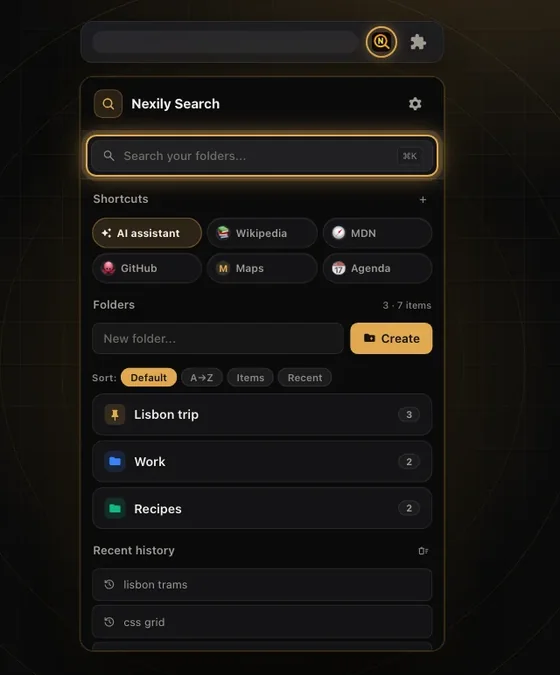
That's the problem Nexily Search aims to solve: colour-coded folders that make your categories recognisable at a glance, an instant ⌘K search that filters all your bookmarks as you type, and custom shortcuts for your most-used links. It all works offline, and the extension is available on Chrome, Firefox and Edge.
The key point, though, remains the method. An extension speeds up search and makes filing more pleasant, but it won't decide for you what's worth keeping. Start with the six steps above; the tool comes after.
 Nexily Search
Smart bookmarks, ⌘K search, colour-coded folders.
Discover SearchFree: 2 folders